
Optimising My Digital Darkroom Setup for 2026
One of the goals I had set in early 2025 was to update my aging Windows gaming computer. A few months earlier I had upgraded my camera body to the Sony A6700, and with the resulting increase in file size for both photos and video, post processing became noticeably slower and increasingly frustrating as the computer started crashing regularly. When photographing, I predominantly output RAW files from my camera, rather than letting the camera process the image into a JPEG. You can then import those RAW files into software such as Adobe Lightroom or Camera Raw, Capture One, or Affinity Photo, just to name a few. This is where you can carefully process an image to achieve correct exposure and colour, a digital equivalent of how film is developed in the darkroom.
Hardware: MacBook Pro & External Drives
In May of 2025 I upgraded my computer to an Apple MacBook Pro. I felt it was the right choice, and after choosing the best specifications to suit my needs, I’m very happy with the decision I made. I can now process photos and videos with much greater ease. With the Windows computer I had used Adobe Lightroom Classic (LCR) to process the RAW files from my camera. LRC operates on a catalogue system; I had two external hard drives, one was an SSD drive and the other a standard hard drive, which contained folders of the RAW files and edited files that were connected to the LRC catalogue. The problem I encountered when connected to the MacBook Pro, that the files on the standard hard drive became read-only because the drive had been formatted for the Windows operating system, which meant I kept getting “files not found” errors when trying to open some of the older photos within the catalogue.
Also having an iPhone, I found the connectivity between the iPhone and my MacBook Pro noticeably increased my productivity, and when I opened the RAW files from the iPhone on the MacBook Pro they would open directly into Adobe Camera Raw. Camera Raw offers essentially the same core features as Lightroom Classic minus the catalogue system. I decided to start using Adobe Bridge to sort and organise the photos, Adobe Camera Raw to process the images, and then to bring selected photos into Photoshop when further, pixel level editing was required. It took a little while to get used to this adjusted process, but now I feel I have a significantly better workflow for processing my photos.
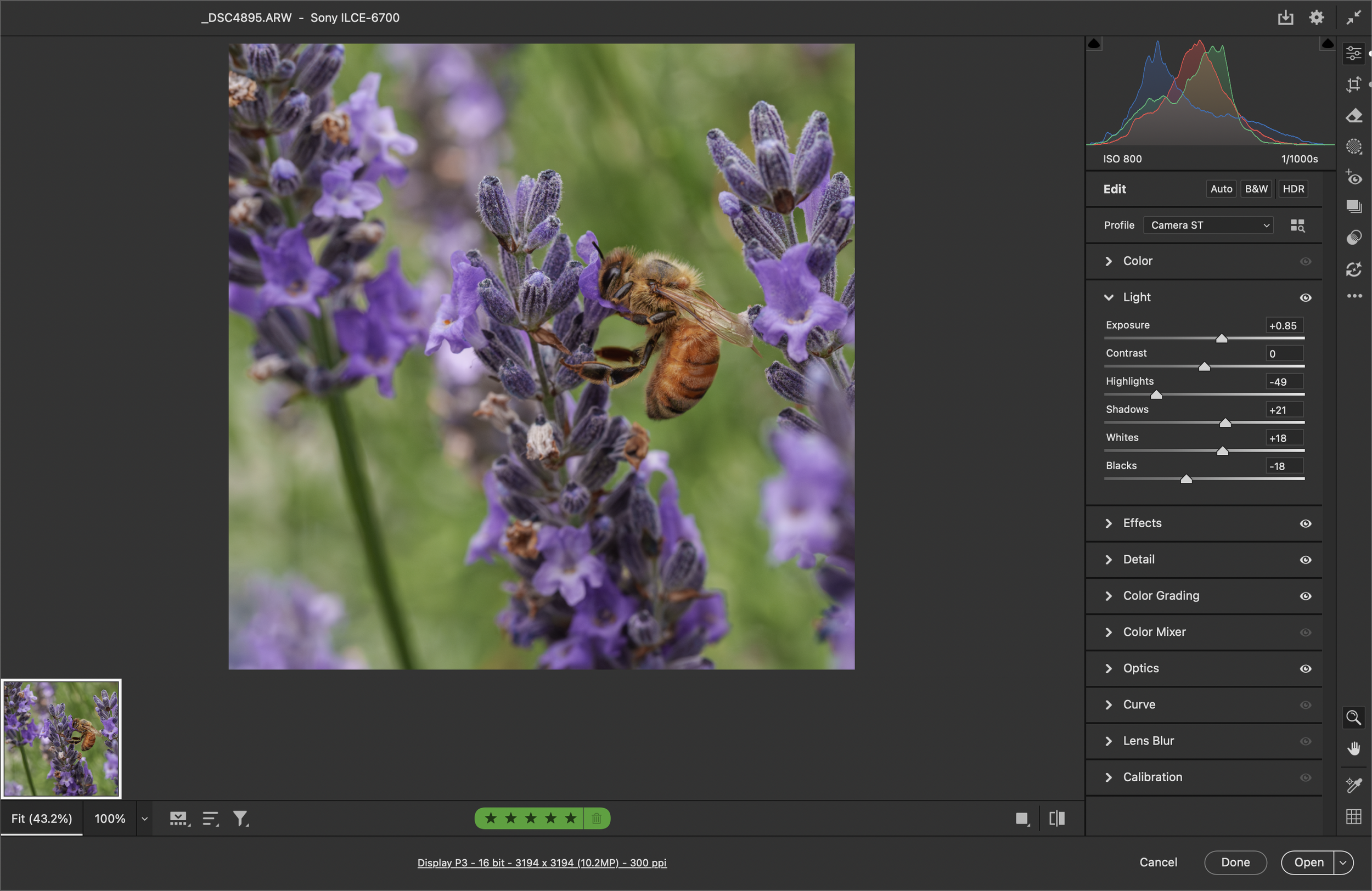
Adobe Camera Raw
File Organisation & Backup Strategy
Since I was satisfied with the new photo processing workflow, it felt like the right moment to tackle the external hard drives. I had several smaller drives of 1 and 2 TB and one 4 TB drive that had been used for backups and kept in secure storage. Over the course of two weeks I began with the smaller drives and gradually transferred files onto my MacBook Pro, which has 512 GB of internal storage plus a 2 TB SSD. I deleted files I judged unnecessary, and once each external drive was emptied I reformatted it for use with the MacBook Pro. The files were then copied back onto the freshly formatted drives. With Lightroom Classic, the photos were imported by date taken, so I also renamed the folders and now maintain a very structured file system that makes locating files straightforward. Now, when I transfer photos and videos from the camera SD card I rename the folders immediately, and everything is consistently categorised by year. The process was time consuming, but ultimately worthwhile.
When processing photos using LRC I had it set automatically to write the metadata and develop settings to a “.xmp” file, that way all the edits for the photos were saved back into their original folder alongside the image files. Confident that I hadn’t lost any edited photos, I then uninstalled LRC and deleted the catalogues as well. I now manually back up my photo files weekly and am in the process of learning to use the Automation feature of the MacBook Pro so this backup process will occur reliably in the background.
The final change I made was reassessing my cloud storage and whether I really needed it. Cloud storage can be quite expensive, so I began asking myself if it was necessary. I had been paying for 2TB of Google Drive storage, and since I live rurally, where broadband can be much slower than in urban areas, the convenience didn’t always feel worth the cost. I decided it would be best to cancel my Google Drive subscription and I now pay for 50GB of iCloud storage, which only costs $1.50/month because it’s bundled with Apple TV and Music. Fifty gigabytes seems ample if I manage it carefully. I also purchased another 4TB external hard drive made for Mac. I’m aware hard drives can fail, so maintaining multiple backups is important, and cloud storage can be vulnerable to hacking, so security is another concern. Ultimately it came down to economics: I was paying $205/year for 2TB of cloud storage, whereas a 4TB external drive was a one‑off cost of about $250.
With all the changes I have now made, I’m confident that I have the best digital darkroom setup that suits my needs for 2026. Processing photos used to feel like a chore, but with Adobe Bridge always open and running in the background, I can easily start working on photos at any time of the day. Paired with the portability and reliable 24-hour battery life of the MacBook Pro, my workflow is now efficient and flexible.